If you feel like your Sony TV’s performance isn’t quite as fast as it used to be, here are a few quick and easy things you can try that might improve its performance.
Tip: Learn how to turn captions on or off when watching Internet videos from YouTube
1. Perform a Full Restart
Normally, when you press the power button on your Sony TV remote, you’re actually just putting your TV on standby. Fully restarting your TV every now and again can help with a lot of issues, including performance. To fully restart your TV, press and hold the power button on your remote for five seconds, then press Restart when prompted. This will fully power off and back on your Sony TV.
2. Update Your Sony TV
Updates often bring a wide variety of improvements, including security and performance enhancements. To check if there’s an update available, navigate to:
- Settings → System → About → Update
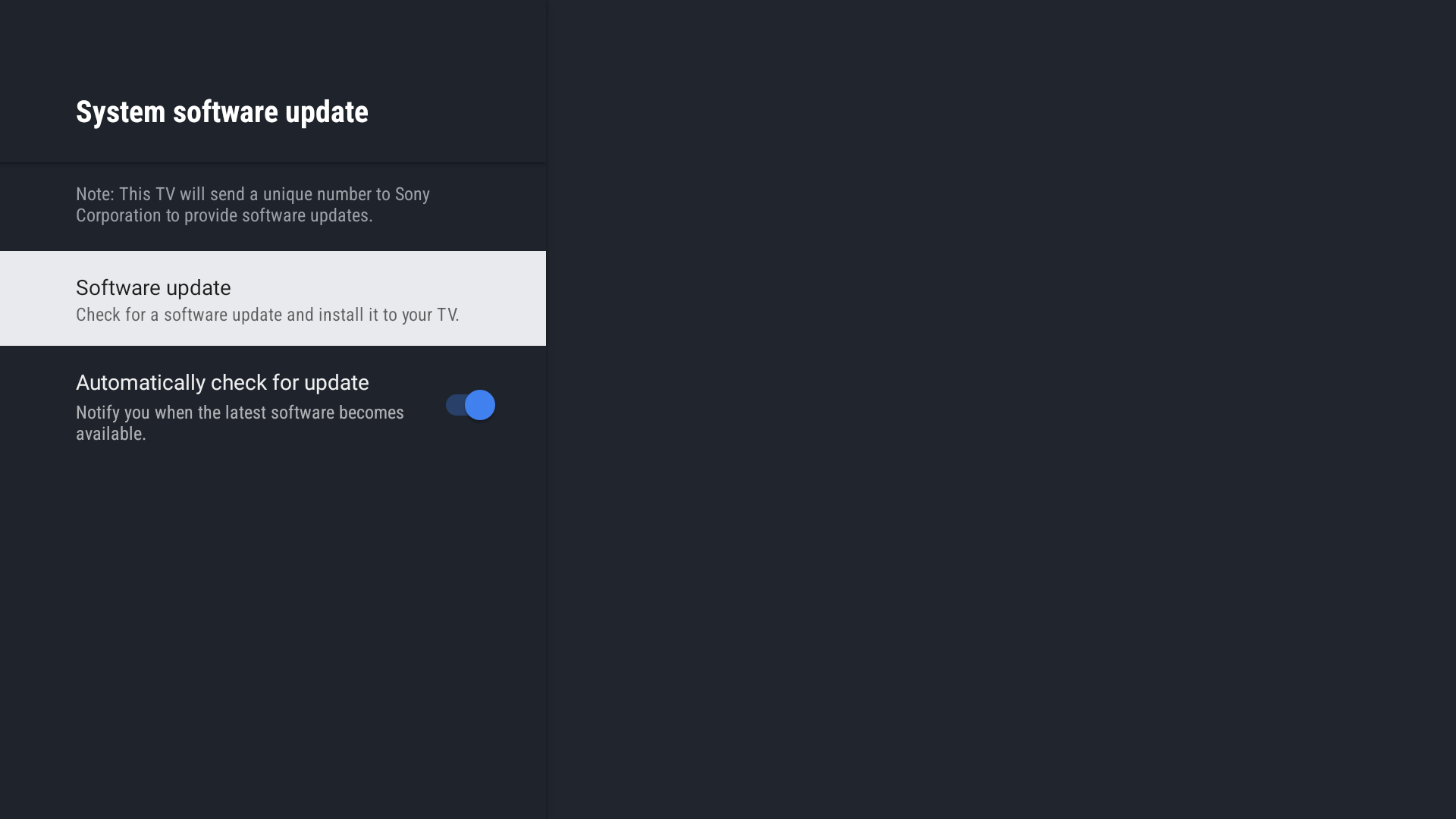
If your TV is not connected to the internet and you still want to update it, please refer to this guide.
3. Clear Cached Data
Your TV builds up cached data over time to help apps and services run more smoothly. However, this can eventually take up space and affect performance. You can clear this cached data to free up memory by going to:
- Settings → System → Storage → Internal Shared Storage → Cached Data
4. Perform a Factory Reset
If all else fails, a full factory reset can bring your TV back to a clean slate. Be aware that this will erase any files stored on the TV, so make sure to back up anything important before proceeding. To do a factory reset, go to:
- Settings → System → About → Reset → Factory Data Reset → Erase everything
